Getting started
Everything you need to run your group on Racqu, from your first session to the day someone's running late.
1Create your account
- Download Racqu from the App Store or Google Play.
- Sign up with your email address and a password, then tap the confirmation link we email you.
- Sign in and review the Terms & Conditions when asked.
- Allow notifications when your phone asks, so you hear about new sessions right away.
Forgot your password? Tap Forgot password on the sign-in screen and we'll email you a reset link.
2Start a group
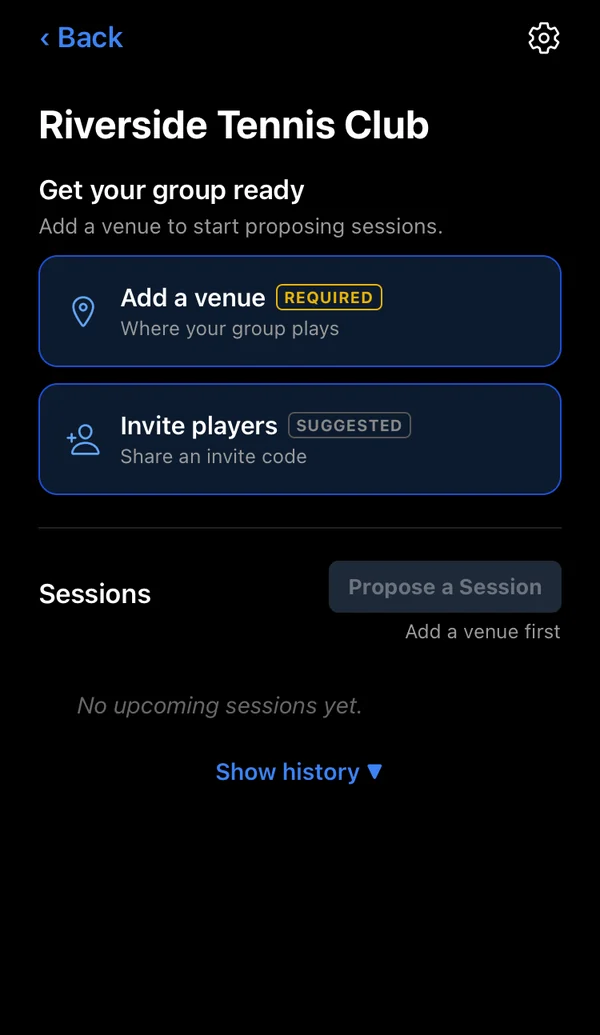
- On the Home screen, tap Create a Group and give it a name.
- Your new group shows a short setup checklist.
- Add a venue: required before anyone can propose a session.
- Invite players: generate an invite code and share it.
You're the group's admin, so you decide who joins and how the group runs.
3Join a group
- Ask your group's admin for an invite code.
- On the Home screen, tap Join a Group.
- Enter the code and tap Join Group. The group appears under My Groups.

4Add venues
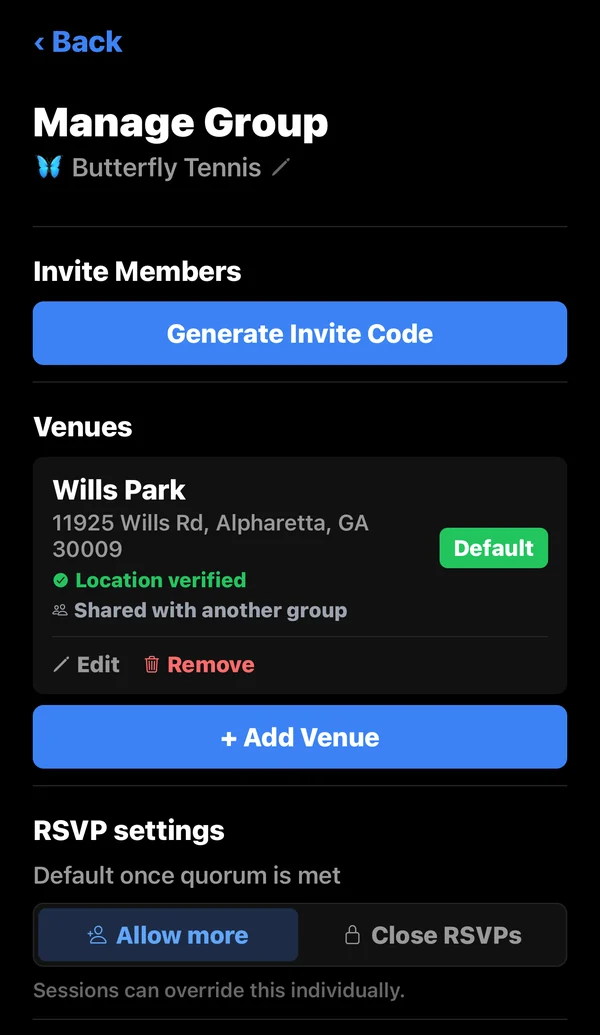
- Open your group, tap the settings (gear) icon, then Manage Group.
- Under Venues, tap Add Venue and enter the name and address.
- Once the location is verified, sessions there show the weather forecast.
Groups can have several venues. The one marked Default is pre-selected when someone proposes a session.
5Propose a session
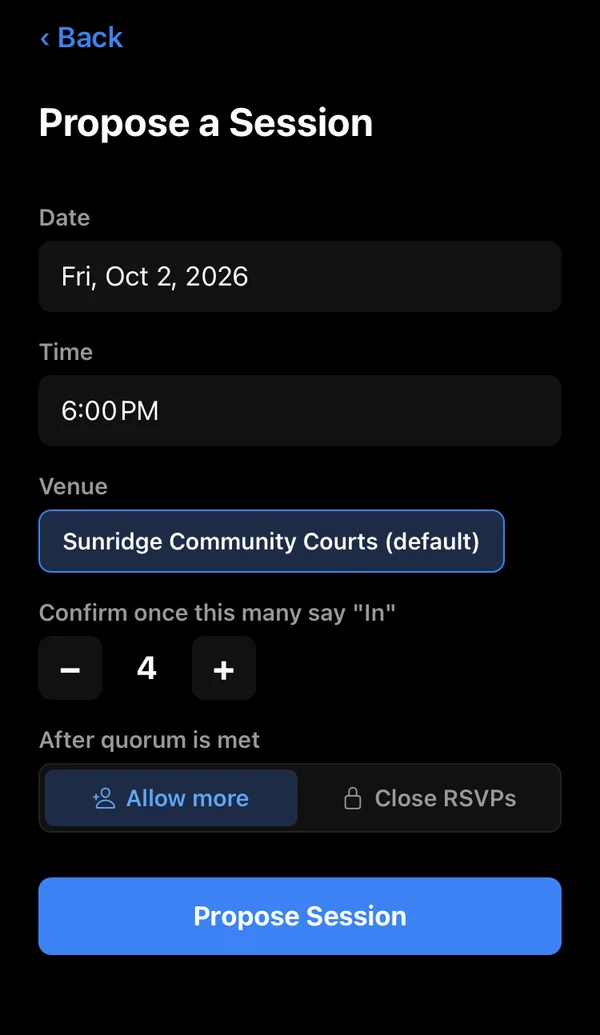
- Open your group and tap Propose a Session.
- Pick the date, time, and venue.
- Set how many players need to say "In" for the session to be confirmed.
- Choose whether more players can still join once that number is reached, or whether RSVPs close.
- Tap Propose Session. Everyone in the group gets a notification.
6RSVP
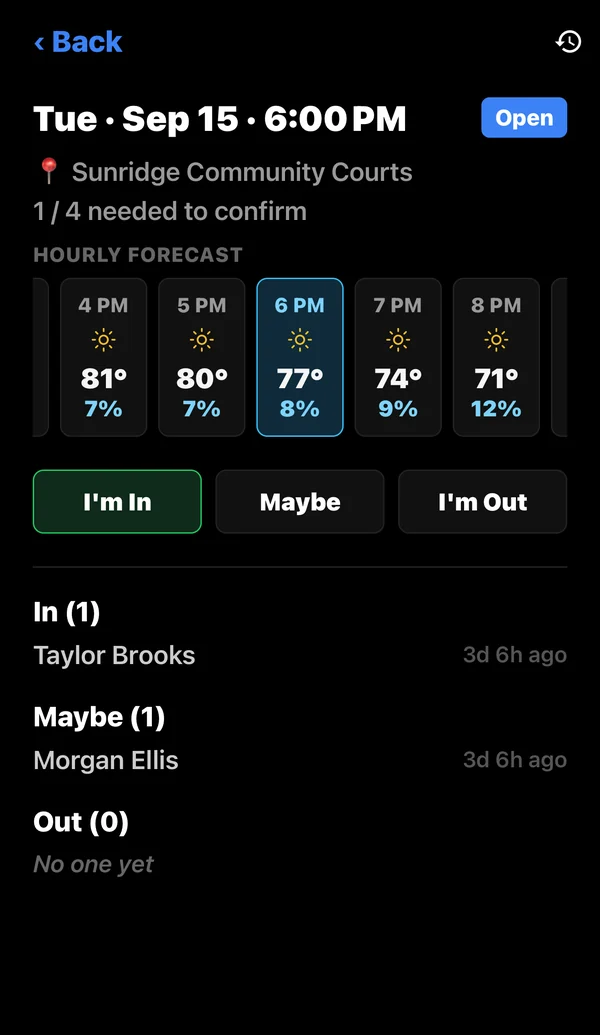
- Open a session and tap I'm In, Maybe, or I'm Out.
- Once enough players are in, the session turns Confirmed.
- Changed your mind? Tap a different answer. Others are notified, depending on your group's settings.
RSVPs stay open until an hour after the start time, so a late fourth player can still join.
7On My Way
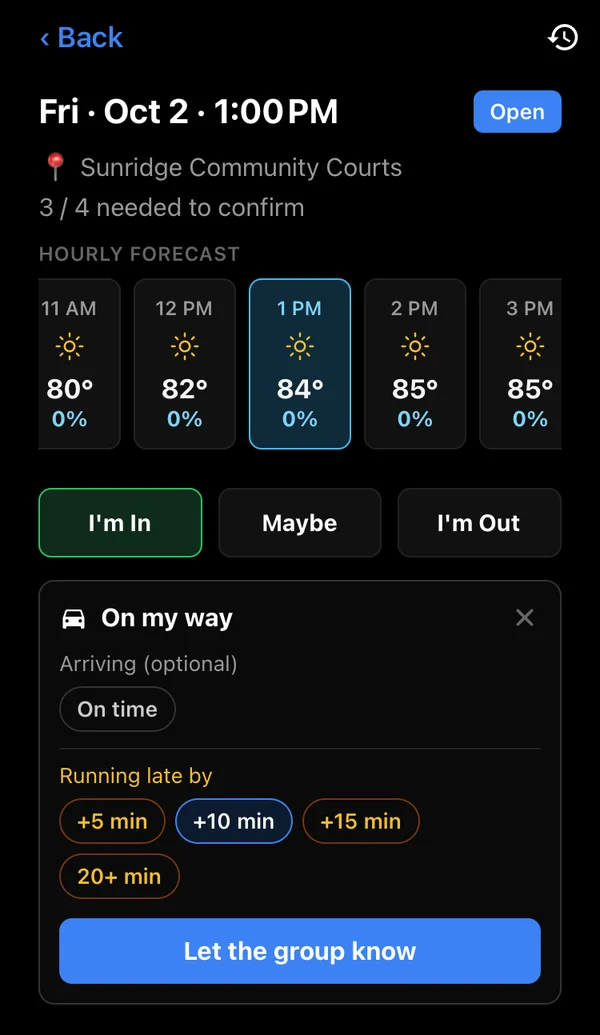
- Starting an hour before the session (your group's admin can change this), tap On my way on the session.
- Optionally choose On time or how late you'll be, then tap Let the group know.
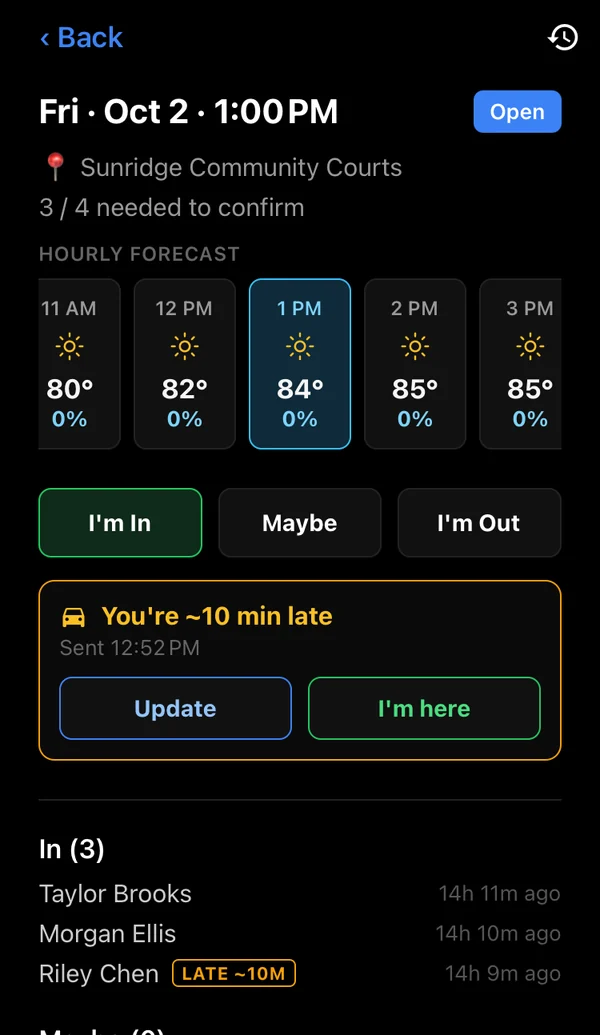
- Your status appears next to your name, and the other players are notified.
- Plans changed? Tap Update. Arrived? Tap I'm here.
Don't use Racqu while driving. Send your update before you leave, or ask a passenger.
8Notifications
Racqu notifies you when:
- a new session is proposed in one of your groups,
- someone changes their RSVP (depending on your group's settings),
- a session's time or venue changes, or it's cancelled,
- a player shares that they're on the way or running late.
Tap a notification to open that session. Not getting any? Check that notifications are allowed for Racqu in your phone's Settings.
9Group settings (admins)
Admins can open Manage Group from the group's settings (gear) icon to:
- generate invite codes and manage venues,
- choose whether more players can join once a session is confirmed,
- decide what happens to RSVPs when a session's time or venue changes,
- warn about, or prevent, duplicate sessions at the same venue and time,
- choose who's notified about RSVP changes,
- set when the On My Way button appears, and who's notified.
The player who proposed a session, or an admin, can edit or cancel it. Cancelling asks for a reason, which the group can see.
10Your account
Tap the settings (gear) icon on the Home screen to open your profile. From there you can sign out, or delete your account at any time.
Still stuck?
We're happy to help.